
Ever wonder if your monitor is costing you more than it should? Choosing the right display isn’t simple. You have to consider size, check clarity, and look at features that really matter. A quick review can help you make a smart choice without breaking the bank. In this guide, we cover key factors like screen size, resolution, and connectivity so you can confidently choose a monitor that fits both your needs and budget.
computer monitor buying guide: key selection factors

When choosing a computer monitor, start with the screen size. Monitors are measured diagonally (from one corner to the opposite one). Common sizes include 24", 27", and 32". Bigger screens give you more workspace, but they take up more desk space and usually cost more.
Next, think about resolution and panel technology. Full HD monitors (1080p resolution) can be found for less than US$150 when they're smaller. In contrast, a 27" monitor with 4K resolution (very sharp images) and an IPS panel (accurate, rich colors) will generally cost around US$500. Many monitors for everyday use perform well and are priced under US$300, which makes them a solid option if you're on a budget.
Also, check the connectivity and ergonomic features. It's best to pick a monitor with multiple ports, like HDMI, DisplayPort, and USB-C (a type of connection that transfers data and power), so you can easily hook up your devices. Features such as adjustable stands and VESA mount compatibility help ensure the monitor fits your workspace and meets your daily use needs, whether you're working or enjoying entertainment.
- Screen size and aspect ratio
- Resolution and pixel density
- Panel type (IPS, TN, VA)
- Refresh rate and response time
- Connectivity options (HDMI, DisplayPort, USB-C)
- Ergonomic features (adjustable stand, VESA mount)
By matching these factors to your specific needs and budget, you can narrow down your options. If you need clear images and extra space for design or productivity, a 27" 4K IPS monitor might be ideal. For everyday tasks or a study desk, a smaller Full HD display delivers the essentials without stretching your budget.
computer monitor buying guide: resolution and clarity insights
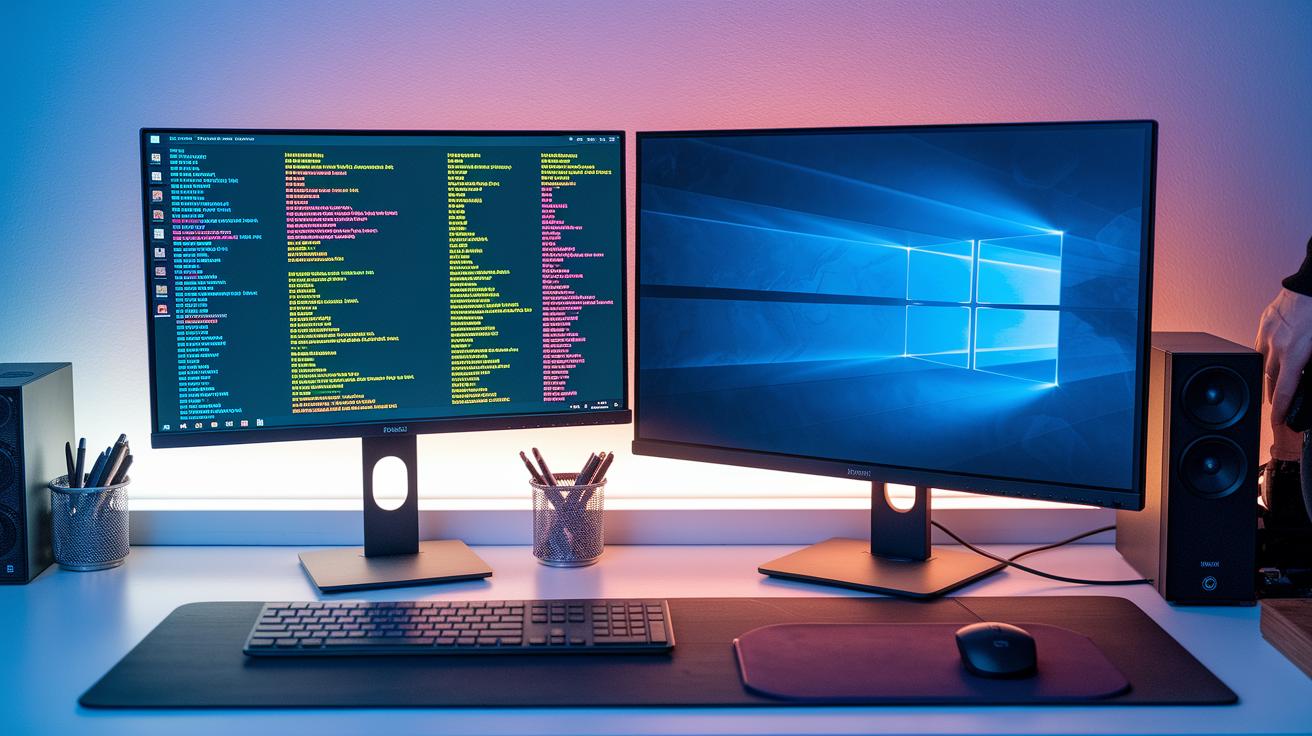
Resolution is the measure of how many pixels your monitor shows, and more pixels mean a sharper image. It affects how clear text and images appear while also influencing the overall interface size. Getting the right balance between resolution and screen size means your display stays easy on the eyes without forcing you to squint.
Full HD (1920×1080) is a solid pick for everyday tasks. It works great on compact screens like a 24-inch monitor and is friendly on the budget. If you need sharper details without a huge cost jump, QHD (2560×1440) delivers noticeably crisper images. This makes it ideal for 27-inch screens or setups where you often split your workspace. For those who demand even finer details, like creative professionals or gamers, 4K UHD (3840×2160) provides impressive clarity and more screen space, especially on larger monitors where high pixel density truly shines.
Ultrawide formats, such as the 21:9 aspect ratio, offer roughly 25% more screen space than traditional 16:9 displays. This extra width is great for multitasking and keeping several windows open at once. When choosing your monitor, consider its size and your main tasks to ensure the resolution you pick gives you a clear view that’s comfortable to use.
computer monitor buying guide: panel technology comparison

Monitors use different panel types that affect picture quality, how fast they respond (response time is the delay between when a signal is sent and when the image appears), and overall performance. TN panels work well for fast-paced gaming. They can hit refresh rates up to 360 Hz and offer response times around 1 ms. IPS panels, on the other hand, deliver bright colors and wide viewing angles with response times between 3 and 5 ms, making them a solid choice for creative tasks and everyday productivity. VA panels stand out with high contrast ratios, about 3000:1, which produces deep blacks. Mini LED VA panels take this further. They use local dimming (controlling brightness in small areas of the screen) to boost contrast up to 25,000:1. OLED panels provide excellent colors and avoid issues like backlight bleed (uneven light), while QD-OLED panels mix quantum dot technology with OLED benefits for top-notch contrast and a broader color gamut.
| Panel Type | Pros | Cons |
|---|---|---|
| TN | Refresh up to 360 Hz; ~1 ms response time | Less accurate colors; narrow viewing angles |
| IPS | Wide viewing angles; vibrant and accurate colors | Response times about 3–5 ms; not ideal for very fast gaming |
| VA | High contrast (~3000:1); deep blacks | Moderate response times; possible ghosting |
| Mini LED VA | Enhanced contrast up to 25,000:1; excellent local dimming | Higher cost than standard VA; thicker design |
| OLED | Superb contrast; excellent color gamut; no backlight bleed | Higher price; potential burn-in issues |
| QD-OLED | Outstanding color reproduction; exceptional contrast and brightness | Premium pricing; limited market availability |
Choosing the right panel depends on what you do daily. If you’re into competitive gaming, a TN panel’s speed is a big plus. For design or general work, IPS panels offer consistent brightness and color accuracy. If deep blacks and high contrast are your top priorities, then VA panels or Mini LED alternatives are worth considering. OLED and QD-OLED panels work great for movie watching or design tasks if you can stretch your budget. Pick the panel that best fits your performance needs and budget for the best overall experience.
computer monitor buying guide: performance specs for gaming

Gaming performance relies on two key factors: refresh rate and response time. Refresh rate tells you how many times the screen updates per second, so a higher number means smoother motion. Response time is the delay between a signal and when it appears on screen, helping to reduce ghosting and blurring.
Monitors for everyday tasks start at 60 Hz, but competitive gamers can choose models that push up to 360 Hz, or even 500 Hz, as these high numbers mean every millisecond counts.
For fast-paced games, low response times are a big plus. TN and OLED panels typically offer about 1 ms, keeping up with quick moves. IPS panels, on the other hand, run around 3 to 5 ms. While they might be a bit slower, they deliver vibrant colors and wide viewing angles that many gamers enjoy.
Here are some models we looked at:
- Samsung Odyssey G9 – A 49-inch curved screen that gives you the feel of dual-27-inch 1440p displays. It is built for high refresh rates and rapid response.
- Dell S3222DGM – A 32-inch QHD monitor with a VA panel running at 165 Hz, offering 85% DCI-P3 color. It keeps motion smooth while maintaining excellent color accuracy.
- Alienware AW3225QF – A 32-inch QD-OLED monitor that delivers 4K resolution and a 240 Hz refresh rate with near-instant response times.
Matching monitor specs to your gaming style is essential. Fast-action titles like first-person shooters or racing games benefit from high refresh rates that cut down on motion blur, while quick response times keep every action sharp. If you want clear visuals coupled with competitive speed, the Alienware AW3225QF is a solid choice. Meanwhile, the Dell S3222DGM and Samsung Odyssey G9 provide balanced performance for gamers who enjoy both immersive graphics and fast play.
computer monitor buying guide: ergonomic fit and connectivity review

Many monitors offer adjustable stands that tilt from -5° to +20°, can swivel, adjust in height, and pivot. This means you can set your screen at a comfortable angle to help reduce neck and eye strain during long days at the computer. Most models also support VESA mounting with a standard 100 x 100 mm pattern, letting you attach the display to a wall or arm bracket to keep your desk clear. Adjusting your stand to match your preferred posture can boost both comfort and productivity.
On the connectivity side, monitors now come with several ports such as HDMI 2.0/2.1, DisplayPort 1.4, and USB-C with DisplayPort Alt Mode. USB-C simplifies things by carrying video, data, and power through one cable, cutting down on clutter. Many displays also include built-in USB hubs so you can easily connect keyboards, external drives, and other devices. Some even have built-in speakers, adding extra convenience without using up more desk space. There are portable options too, like 17.3-inch USB-C models that bring flexibility on the go. All these features help you create a setup that works smoothly for both work and play.
computer monitor buying guide: advanced features and pricing tiers

Budget monitors are the go-to for basic needs. They offer full HD in 22–24 inches and can usually be found for under US$150, or IPS models under US$200. These screens work well for everyday tasks and basic computing without any extra bells and whistles.
Midrange monitors, priced between US$300 and US$600, bring more to the table. They feature QHD resolution, refresh rates around 144 Hz, and HDR support that pushes brightness to between 400 and 600 nits. These models are a solid choice for gamers and multimedia users looking for reliable visuals and smooth motion.
Premium monitors take performance further with high-end options like OLED and Mini LED. Prices generally start above US$700, with many OLED models above US$1,000. They hit peak brightness up to 1,600 nits, offer excellent color accuracy, and provide enhanced contrast levels. For example, the Samsung UR59C comes with a 4K VA panel that boasts a contrast ratio of 2,590.5:1, even though it only supports a 60 Hz refresh rate and doesn’t include adaptive sync. This shows that a higher price tag often covers a range of advanced features, not every single one.
- Budget: Basic HDR support, brightness around 250–350 nits, and usually no adaptive sync
- Midrange: Moderate HDR support, brightness between 400–600 nits, with adaptive sync available
- Premium: Full HDR performance, brightness up to 1,600 nits, and enhanced adaptive sync for smooth, vivid visuals
computer monitor buying guide: use-case recommendations and setups
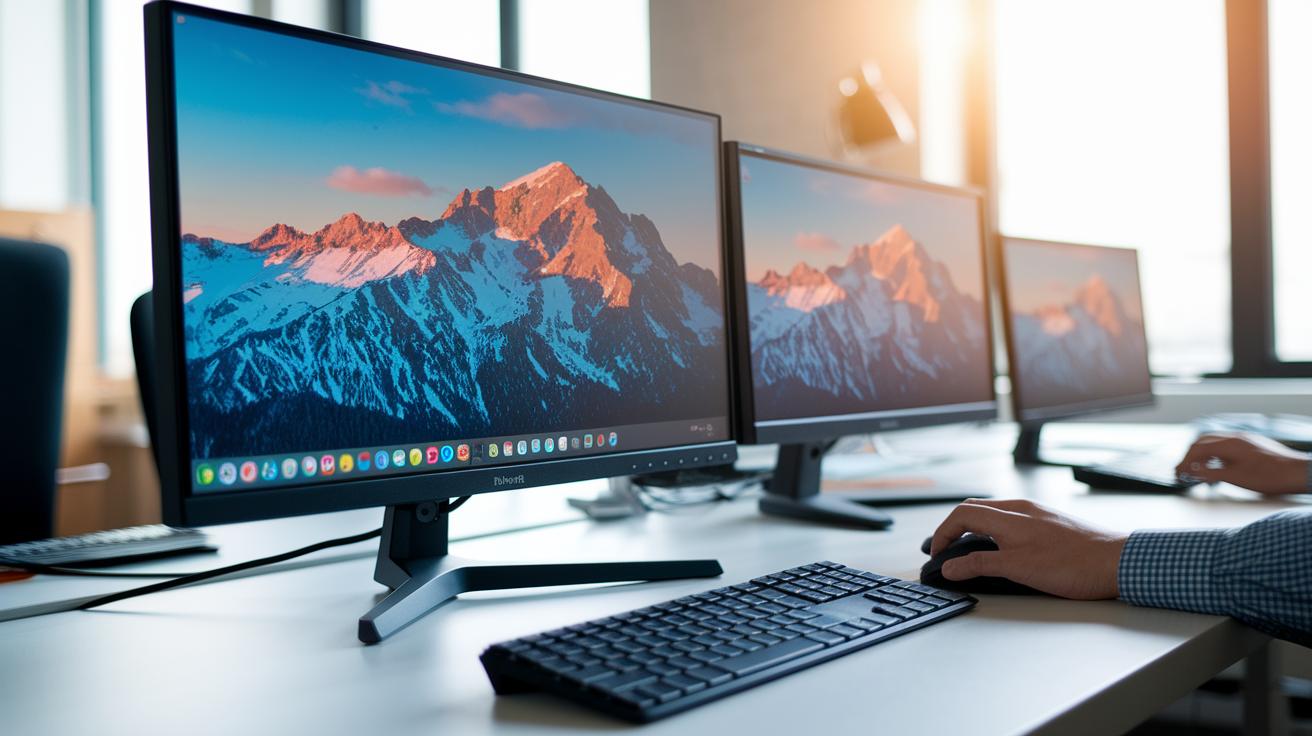
A good monitor can boost your work comfort and productivity. For office and creative tasks, a 27" 4K IPS screen priced around US$500 gives you sharp text and accurate color. This setup works well for those using design software or handling detailed spreadsheets. For smaller spaces or kids, 22–24" full HD monitors under US$150 are a practical choice.
- Home office: Choose a single 27" 4K IPS monitor or a dual-monitor setup for extra multitasking if you work in finance, programming, or video editing.
- Gaming: Look for monitors with high refresh rates (like 144 Hz) and low response times (around 1–5 ms) to enjoy smooth, competitive gameplay.
- Design: A 27" 4K IPS panel ensures color accuracy and sharp details, perfect for photo editing, graphic design, or creative suites.
- Portable: Consider compact 17–19" USB-C displays that easily connect to your laptop for flexible, mobile productivity.
When setting up your workspace, think about whether a dual-monitor arrangement fits your work style or if a single ultrawide display, such as a 34" model that offers about 25% more screen space, might suit you better. Adjust your viewing distance and desk layout to keep your eyes comfortable and maintain productivity during long work sessions.
Final Words
In the action, we broke down key factors from size and resolution to panel technology and performance specs. We also discussed ergonomic features and pricing tiers to help you match the monitor to your budget and use case.
Our computer monitor buying guide steers you through real-world choices, whether you need a setup for gaming, productivity, or creative work. With clear steps and practical advice, you can shop confidently and find a screen that fits your needs perfectly.
FAQ
What insights does a computer monitor buying guide on Reddit offer?
A computer monitor buying guide on Reddit offers real-world advice, user experiences, and practical tips on factors like screen size, resolution, panel type, and connectivity to help you make an informed decision.
How do I choose and purchase a monitor for gaming?
A gaming monitor buying guide explains key aspects like fast refresh rates, low response times, and optimal panel technology to improve in-game experiences and reduce motion blur during competitive play.
How do I select a monitor for a home office or work setup?
A guide for home office monitors highlights ergonomic features, connectivity options, and display clarity to ensure comfortable long-term use and efficient multitasking during work hours.
What does a monitor buying guide for 2025 typically cover?
A 2025 monitor buying guide covers the latest in display advancements, updated specifications, and emerging trends, ensuring you’re informed about future-proofing your setup with relevant features.
What should I know about monitor specifications and quality levels?
An explanation of monitor specifications sheds light on factors like resolution, panel technology, and refresh rates, while quality levels indicate how these specs translate to real-world performance and visual experience.
